Skip to content
SOONOne app. Every account. Coming soon to your Mac

Run multiple accounts
of any Mac app, side by side.

Keep Claude open with your personal Pro account and your work Team account, side by side. MacDualSpace makes as many copies of any app as you need, from Claude and Codex to Cursor and Slack, each with its own logins, cookies and settings. No logging out, no second Mac user, and your sign-ins stay on your Mac.

Not released yetPlanned: free for 2 SpacesNo account needed
No logging outIsolated data per copyNo account, ever

Choose Clone Claude in the menu bar, sign in to your work account. The preview is an illustration with sample accounts.

One click. Any app. Every account.

Works with apps like Claude, Codex, Slack and more

ClaudeClaude CodeCodexChatGPTCursorVS CodeSlackTelegramDiscordChromeArcNotionFigmaLinearSpotifyZoomMicrosoft TeamsMessengerGitHub Desktop
A look inside the app

Everything in one window,
every feature in the sidebar.

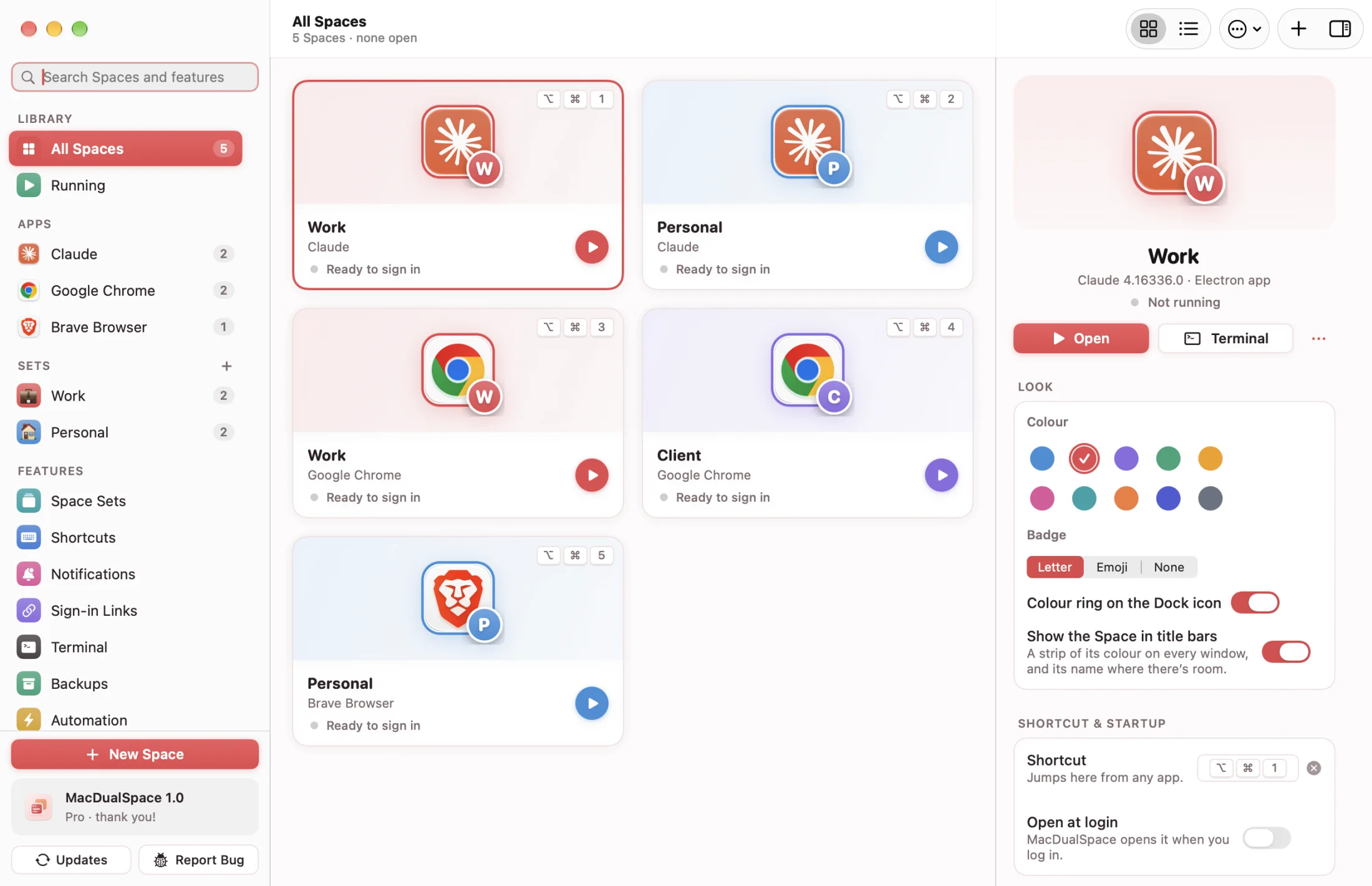
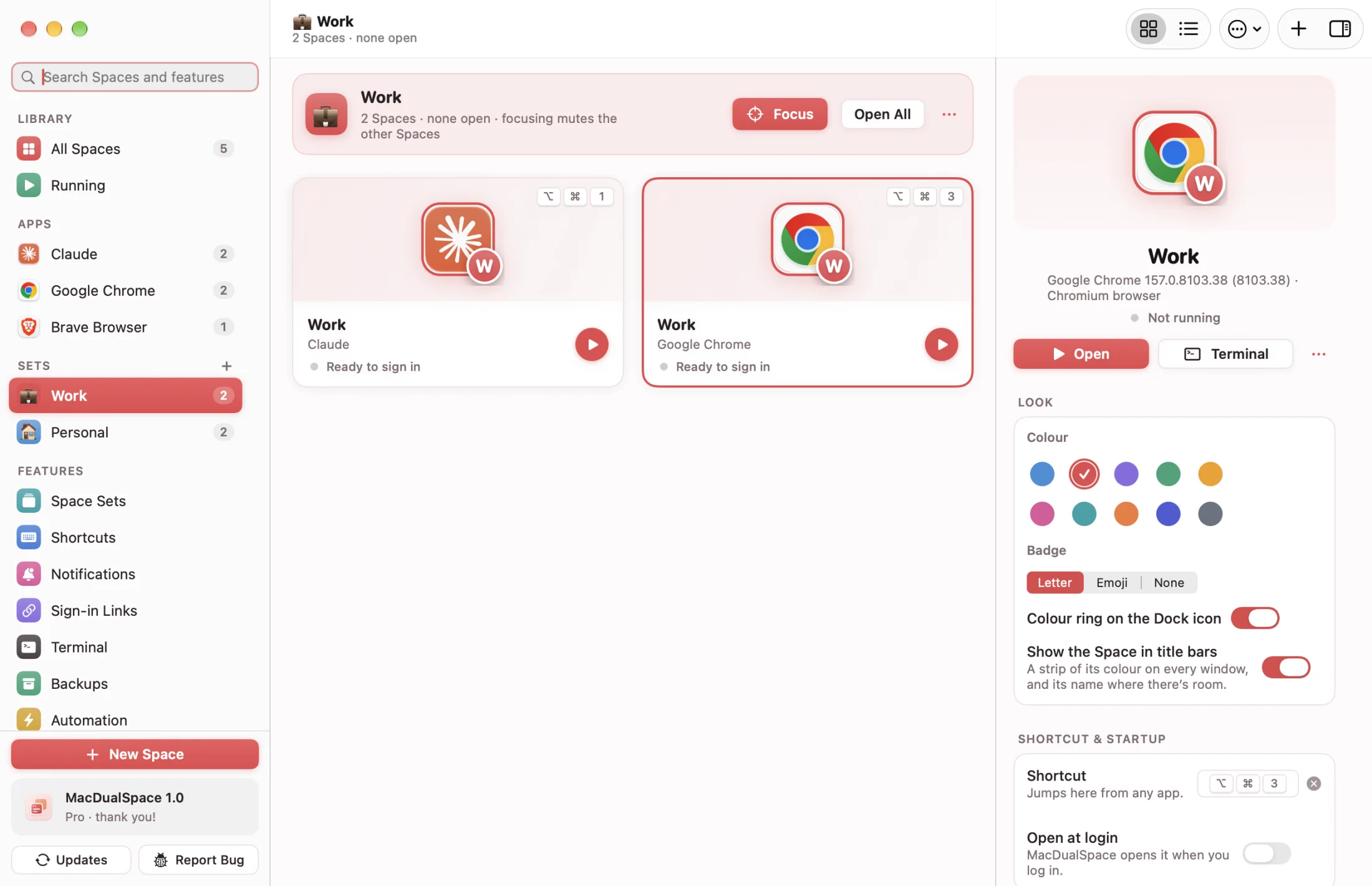
Your Spaces, Space Sets, notifications, Terminal, shortcuts, Settings, Updates and Report a Bug, all one click away. These are screenshots of the real Mac app with sample Spaces.

The MacDualSpace window: five Spaces (Claude · Work, Claude · Personal, Google Chrome · Work, Google Chrome · Client and Brave Browser · Personal) as cards with colored rings and letter badges, a sidebar of apps, Sets and features, and the details of Claude · Work on the right.
Every copy of every app, in one window.Your Spaces as a grid or a list, grouped by app and by Set, with the selected one’s color, badge, shortcut and sealed-off data on the right. Search finds any Space or setting.
A copy for every account

Multiple accounts per app,
all signed in on one Mac.

No more logging out of one account to check another. Here’s how MacDualSpace keeps every version of you open at once.

Clone in a click

Clone it. Sign in. Done.

Drop Claude, Codex or any app onto MacDualSpace, clone the app you’re in from the menu bar, or right-click it in Finder and choose Services › Clone with MacDualSpace. Give the copy a name and a color, and it opens fresh, ready for your other account.

  • Works with the apps you already have installed
  • Your original app is never touched
  • Make as many copies as you have accounts
Sealed-off Spaces

Every copy, its own little world.

Each Space keeps its own cookies, sessions, cache and settings in a separate folder. Sign in to your personal Claude in one and your company’s Team plan in the other, and the two never mix.

  • Separate logins that stay signed in
  • No shared cookies or cached data
  • Delete a Space and every trace goes with it
Space Sets and FocusNew

One click for everything Work.

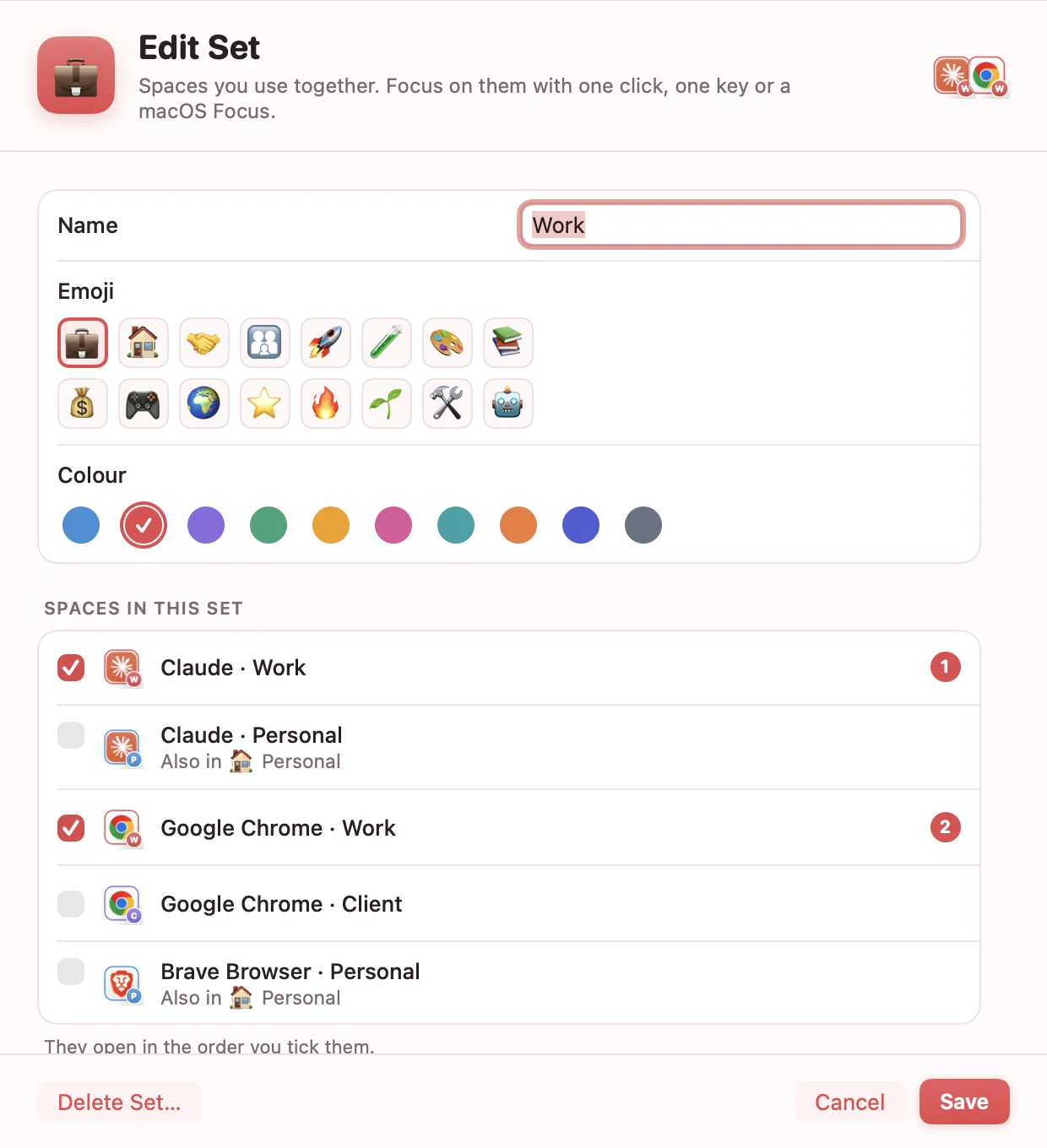
Group the copies you use together into a Set, like Claude, Slack and Chrome signed in to Work. Focus on it and its Spaces open while your personal copies go quiet. Add MacDualSpace to a macOS Focus and it happens on its own when the Focus turns on.

  • Open, quit or mute a whole Set at once
  • Others left alone, muted or quit while you focus
  • Works with macOS Focus, Shortcuts and a key of your own
App LockNew

Lock the Spaces that are yours alone.

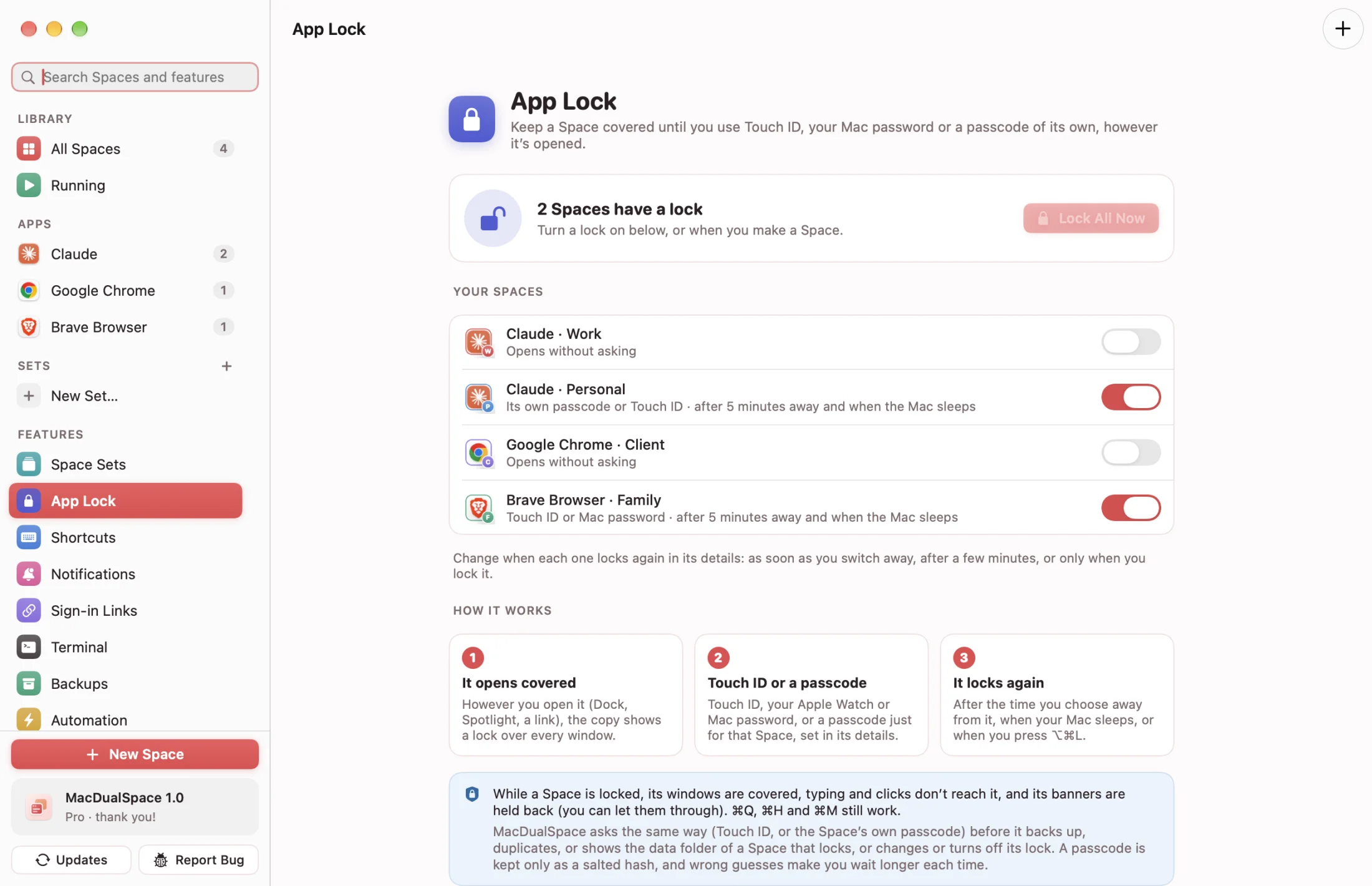
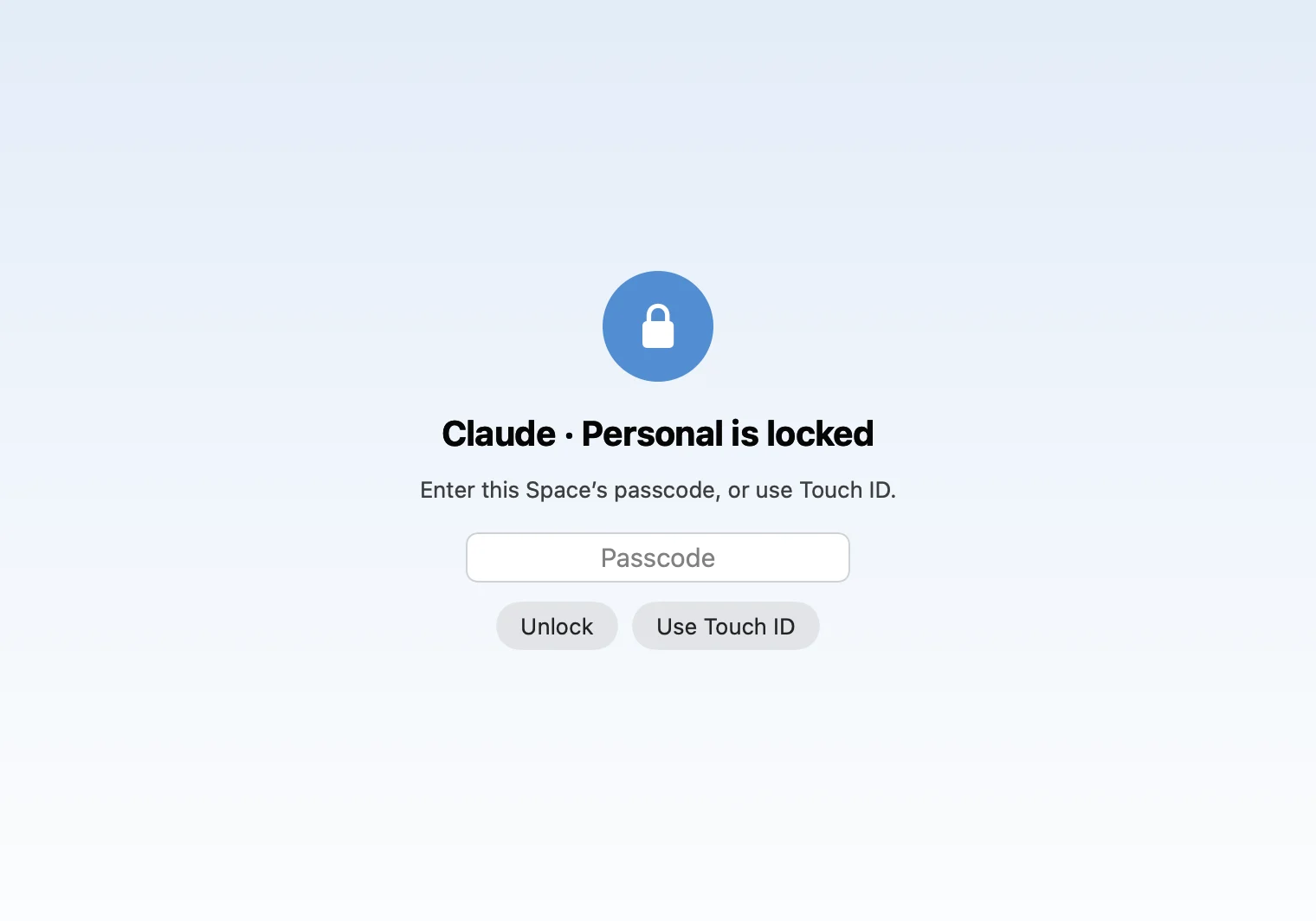
Sharing a screen, or a Mac? Lock your Personal Claude or your Family browser. The copy opens covered, however it’s started, and stays covered until you use Touch ID, your Mac password, or a passcode just for that Space.

  • Touch ID, your Mac password or a passcode of its own
  • Locks again when you step away or your Mac sleeps
  • Lock every Space at once with ⌥⌘L
Terminal Spaces

Claude Code and Codex, one login per Space.

Command-line tools keep a single login in your home folder. Open a Terminal tab in any Space and Claude Code, Codex or the GitHub CLI each get their own config, keys and history.

  • Run claude or codex as Work, Personal or Client
  • A separate config folder and keys for every Space
  • Color-coded tabs in the terminal you already use
Color-coded

Tell them apart at a glance.

Every copy wears its Space’s color and letter on the Dock icon, in the title bar and in the switcher. You’ll never reply from the wrong account again.

  • Colored rings and letter badges in the Dock
  • The Space name in every window’s title bar
  • Your own emoji or letter for each copy
One shortcut away

Switch accounts without signing out.

Press ⌥⌘1, ⌥⌘2 and so on to jump straight to a Space, or pick one from the menu bar. Each copy stays exactly where you left it.

  • A shortcut for every Space, yours to change
  • A tiny menu bar switcher
  • Open at login, Space by Space
Labeled alerts

Notifications that know who they’re for.

Every alert says which Space it came from, in that Space’s color. Mute one Space for an hour, or until tomorrow, while the rest keep you posted.

  • Space name and color on every banner
  • Mute one Space, keep the others
  • Badge counts for each copy in the Dock
How it works · three little steps

How to run two instances
of an app on your Mac.

No virtual machines, no second Mac user, no terminal. If you can drag and drop, you can clone.

  1. STEP 1

    Pick an app

    Drop Claude, Codex or any app onto MacDualSpace, or pick it from the apps on your Mac. Your original stays exactly as it is.

  2. STEP 2

    Make as many copies as you need

    Name each copy (Work, Personal, Client) and pick a color. That color follows it everywhere: Dock, windows and alerts.

  3. STEP 3

    Sign in once in each copy

    Every copy opens fresh, like it has never seen you before. Sign in with a different account in each, and they all stay signed in.

Want to try the free way first? Terminal can open a second copy of many apps, but that copy usually shares the first one’s data and sign-in. Read the guide to running two instances of an app on Mac

Six lives online. One Mac to hold them.

Two Claude, Slack or Chrome
accounts on one Mac.

Work and home, clients and side projects, main and alt. Whoever you are today, there’s a Space for it.

PWClaude × 2

Two Claude plans, side by side

Keep your personal Pro chats and your company’s Team workspace open at once, with no signing out in between.

PersonalWork
WCCodex × 2

Codex for every client

Run Codex signed in to each client’s account, so code, keys and usage never cross over.

WorkClient
PWSlack × 2

Slack workspaces, finally apart

Slack can switch between workspaces. A clone puts your company Slack and the community one in two separate windows, so a meme never lands in #general.

PersonalWork
FWChrome × 2

WhatsApp Web, personal and business

Open WhatsApp Web in two Chrome Spaces and reply to customers from one and to family from the other, both on the same Mac.

FamilyWork
WCArc × 2

Test your app as two users

Open Chrome or Arc twice and try the admin and the customer view side by side, with separate sessions.

WorkClient
FPDiscord × 2

Main and alt accounts

Discord and Telegram can switch accounts. A clone keeps your main and your alt open at once, without a second Mac user or a virtual machine.

FamilyPersonal
Private isn’t a setting. It’s the idea.

Private by design.
Logins stay on your Mac.

Your accounts, messages and passwords stay in folders on your Mac. MacDualSpace doesn’t collect them, runs no analytics and has no account to sign up for. Here’s what that means, plainly.

  • Your data stays on your Mac.

    Clones, sign-ins and app data live in folders on your Mac. MacDualSpace doesn’t collect them, and it has no analytics.

  • No account, no login.

    There is no MacDualSpace account to create. You only sign in to the apps you clone, the same way you always do.

  • Each Space is sealed off.

    Every copy gets its own folder for cookies, cache, settings and sessions. One Space can’t read another.

  • Lock what’s yours alone.

    Cover any Space with Touch ID, your Mac password or a passcode of its own, so someone at your Mac can’t open it. A passcode is never stored, only a salted hash of it.

  • Your passwords stay yours.

    You sign in to each copy yourself, right in the app. MacDualSpace never sees or stores a password.

  • Delete means delete.

    Remove a Space and its whole folder goes with it, so nothing of that account is left behind.

Why MacDualSpace

Why not Chrome profiles
or a second macOS user?

Chrome profiles keep accounts apart, but only inside Chrome. A second macOS user keeps everything apart, but shows you one user at a time. MacDualSpace gives one app a second account, in your own desktop, right next to the first.

Clone in one click

Drop an app onto MacDualSpace, or click Clone in the menu bar, and a fresh copy is ready.

Every account, at once

Stay signed in to two, three or ten accounts of the same app.

Sealed-off data

Cookies, cache and sessions are kept apart for every Space.

Never mix them up

A color and a name on the Dock icon, window and every alert.

One key to switch

Jump between copies with ⌥⌘1, ⌥⌘2 or the menu bar, or switch a whole Set when your Focus changes.

Light as a feather

A lightweight menu bar app. No kernel extensions, no system daemons.

MacDualSpace at a glance

Status
Not released yet
Price
Planned: Free for 2 Spaces · Pro $29 once
Requires
macOS 14 Sonoma or later
Runs on
Apple silicon & Intel
Account
None, ever
Spaces
Unlimited with Pro
Data
A separate folder for every Space
Privacy
Sign-ins and app data stay on your Mac
Shortcut
⌥⌘1 to jump to a Space
Sets
Free, and a macOS Focus can switch them
Lock
Touch ID or a passcode, free
And all the little things

Manage your app clones.

Quit all at once

Close every copy of an app in one go from the menu bar.

Launch at login

Choose which Spaces open when your Mac starts up.

Duplicate a Space

Start a new Space from an existing one, settings and all.

Back up a Space

Export a Space to a single file, and bring it back later.

Custom icons

Pick an emoji or a letter badge for every copy’s Dock icon.

Rename freely

Change a Space’s name or color without losing a thing.

Menu bar switcher

Every Space and Set, one click away, from a tiny menu bar icon.

Updates in place

Update the original app and every copy picks it up.

Mute any Space

Quiet one Space for an hour or until tomorrow while the others keep pinging.

Clean uninstall

One button removes every Space and every folder it made.

Light & dark

Follows your Mac’s appearance, down to the badges.

VoiceOver ready

Every control is labeled and keyboard reachable.

Search everything

Find a Space or a setting by what it does: “mute”, “codex”, “restore”.

Sign-in links

Browser logins land in the right copy, then links go back to the original.

Shortcuts & Raycast

Every Space and Set has a link, plus actions in the Shortcuts app.

Report a bug in the app

Send a bug report or an idea from inside MacDualSpace. We reply by email.

Planned pricing

MacDualSpace pricing:
two Spaces free, Pro $29.

This is the pricing we plan to launch with. Run any app twice for free, forever; Pro unlocks every Space you’ll ever need, with no subscription and no account. Nothing is on sale yet.

Free

$0forever

Run any app twice. Perfect for keeping work and personal apart.

  • 2 Spaces, for any app you like
  • Isolated data for every Space
  • Color-coded Dock icons
  • Labeled notifications
  • Space Sets and macOS Focus filters
  • App Lock with Touch ID or a passcode
  • No account, no login
Planned price

Pro

$29one time

Every account you have, all at once. Pay once, keep it forever.

  • Everything in Free
  • Unlimited Spaces and clones
  • Keyboard shortcuts for every Space and Set
  • Custom icons and badges
  • Launch at login, per Space
  • Back up and restore Spaces
  • Free updates for this version
Get notified at launch

Planned: one payment, for all your own Macs.

What happens at launch

The Mac app isn’t out yet.
Here’s what happens at launch.

MacDualSpace hasn’t launched yet, so there’s nothing to download or buy today. Ask to be notified and you’ll hear from us once, when it’s ready.

  1. STEP 1

    Ask to be notified

    Send us your email address. It’s the only thing we ask for, and we use it to tell you when MacDualSpace is ready.

  2. STEP 2

    One email at launch

    When the Mac app is ready to download, you get one email with the link and the price you’ll pay.

  3. STEP 3

    Clone your first app

    Install it like any Mac app, clone an app and sign in with your second account. There’s no MacDualSpace account to make.

Not released yetPlanned: free for 2 SpacesNo account needed

Questions before launch? support@macdualspace.com

Curious? We like that.

Multiple accounts
on a Mac: FAQs

Short answers to what people ask most about running more than one copy of an app.

What does MacDualSpace actually do?

It makes a second (or third, or tenth) copy of an app on your Mac, each with its own data folder. Because each copy has its own cookies, settings and sessions, you can sign in with a different account in each one and keep them all open at once.

Can I download MacDualSpace yet?

Not yet. The Mac app hasn’t launched, so there is nothing to download or buy today. Ask to be notified and we’ll email you once when it’s ready.

How do I run two instances of an app on a Mac without extra software?

In Terminal, open -n -a "App Name" starts a second instance of an app even if one is already running. The catch: both instances run as the same macOS user and use the same data folder, so they are usually signed in to the same account, and some apps refuse to open twice. Chrome and other Chromium-based browsers also accept a --user-data-dir flag that starts a copy with a separate profile folder.

How to run two instances of an app on Mac

How is this different from Chrome profiles, a second macOS user or a virtual machine?

Chrome profiles only separate Chrome: they are great for two Google accounts, but they don’t help with desktop apps like Claude, Slack or Cursor. A second macOS user separates everything, but you see one user at a time, so the two accounts can’t sit side by side. A virtual machine runs a whole second copy of macOS, which takes many gigabytes of disk and a lot of memory. MacDualSpace gives one app a second copy with its own data folder, in your own desktop, next to the first.

Chrome profiles vs MacDualSpace A second macOS user vs MacDualSpace

Is this the same as Spaces in Mission Control?

No. In macOS, Spaces are the extra desktops you create in Mission Control to spread your windows out. Every app on them is still one app, signed in to one account. In MacDualSpace, a Space is a separate copy of an app with its own data folder, so it can be signed in to a different account. The two work fine together: you can keep each copy on its own desktop if you like.

Slack, Discord and Telegram already support multiple accounts. Why clone them?

They do, and if switching inside the app works for you, use it. Slack lets you sign in to several workspaces and switch between them, and Discord and Telegram Desktop have built-in account switchers. A clone gives each account its own copy of the app instead: its own Dock icon, windows you can keep side by side, notifications labeled with the Space name and color, and a data folder that is separate from the others.

Is MacDualSpace free?

That’s the plan: a free version that runs two Spaces of any app, forever, with Space Sets, macOS Focus filters and App Lock included, and a one-time $29 Pro with unlimited Spaces, shortcuts, custom icons and backups. Nothing is on sale yet, and final pricing is confirmed at launch.

What are Space Sets?

A Set groups the Spaces you use together, like Claude · Work, Slack · Work and Chrome · Work. Open, quit or mute a whole Set at once, or focus on it: its Spaces open and your other Spaces are left alone, muted or quit, as you choose. Stop focusing and everything it muted can alert you again. Sets are free.

Can MacDualSpace switch accounts when my Focus changes?

Yes. In System Settings › Focus, add MacDualSpace’s Focus filter to a Focus such as Work and pick a Set. When the Focus turns on, that Set opens and your other Spaces go quiet; when it ends, they can alert you again. The Shortcuts app has Focus on Space Set, Open Space Set and Quit Space Set actions too.

Can I lock a cloned app?

Yes. Turn on App Lock for any Space and its windows stay covered, and typing and clicks don’t reach it, until you unlock it with Touch ID, your Mac password, or a passcode just for that Space. It locks when the copy opens, however you open it, and again after a while away or when your Mac sleeps. A passcode is never stored, only a salted hash. It’s a privacy cover for the app, not encryption: anyone signed in to your Mac account could still read its files, so use FileVault for the disk. App Lock is free.

Do I need to log in or make an account?

No. There is no MacDualSpace account. You only sign in to the apps you clone, the same way you always do.

Can I use two Claude accounts at once?

Yes. Clone Claude, sign in to your personal account in one copy and your work or Team account in the other, and keep both open side by side. Each copy keeps its own chats, projects and login.

Does it work with Claude Code and Codex in the terminal?

Yes. Open a Terminal tab in any Space and command-line tools like Claude Code, Codex and the GitHub CLI each get their own config folder, so every Space can be signed in to a different account.

Does it work with every app?

It works with most AI, chat, browser and developer apps, including the Electron and Chromium-based ones people clone most, like Claude, Codex, Cursor, Slack and Chrome. It can’t clone Apple’s own apps, iPhone and iPad apps, or iPad apps rebuilt for the Mac (Mac Catalyst apps, such as WhatsApp from the App Store). For those, use the web version in a Chrome or Arc Space. Other App Store apps are in beta: most work, but push notifications and iCloud sync stay with the original. MacDualSpace tells you before you clone if an app isn’t supported.

Is my original app changed?

Never. Your original app and its data stay exactly as they are. Each copy keeps its own data in a separate folder.

Can my Spaces see each other’s data?

No. Every Space has its own folder for cookies, cache, local storage and settings. One copy can’t read another copy’s sessions.

Will I get notifications from every copy?

Yes, and each one is labeled with the Space name and color, so you know which account it’s for. You can mute any Space on its own, or let a Set mute the others while you focus.

Does it slow my Mac down?

MacDualSpace itself is a lightweight menu bar app, with no kernel extensions or system daemons. Each copy you open uses about as much memory as the app normally does.

What happens when the app updates?

Copies use the app you already have installed. When the original updates, MacDualSpace rebuilds its Spaces with your logins and data kept (open ones update when they quit), and its Updates page shows anything waiting. MacDualSpace checks for its own updates once a day, and you can turn that off.

How do I get help or report a bug?

Choose Report Bug at the bottom of MacDualSpace’s sidebar, or Help › Report a Bug. You see exactly what is sent before you send it, and we reply by email. You can also write to support@macdualspace.com.

How do I remove a cloned app?

Right-click its Space and choose Delete Space. Its folder, including any logins saved in it, is removed from your Mac.

One Mac. Every you.

One Mac app.
Every account.
Zero logouts.

MacDualSpace isn’t out yet. Ask to be notified and we’ll email you once when it’s ready. Two Spaces are planned to be free, and there’s no MacDualSpace account to make.

Not released yetPlanned: free for 2 SpacesNo account needed